
Slack Integration
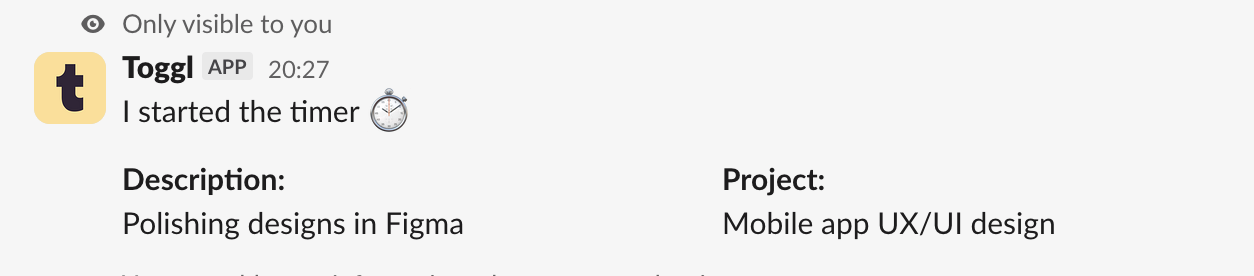
Fit time tracking into your workflow by tracking time from Slack. With the Toggl + Slack integration, you can:
- Start tracking time — use
/toggl startin any channel to start a timer. - Log time entries — use
/toggl trackto add time entries manually. - Get reminders to track time or submit your timesheet.
- Quickly see how much time you’ve tracked — use
/toggl timesheet - Chat with the AI bot to see a summary of your time.
Set up the integration
Before you can use the Slack integration, you need to connect your Toggl organization to your Slack workspace.
You must be a Toggl organization admin to connect the integration.
- Click on the “Integrations” tab in Track sidebar
- Find the Slack integration
- Click “Get started” to open the admin console
- In the admin console, click “Connect Toggl to Slack”
- You’ll be asked to give permissions to connect Toggl to Slack
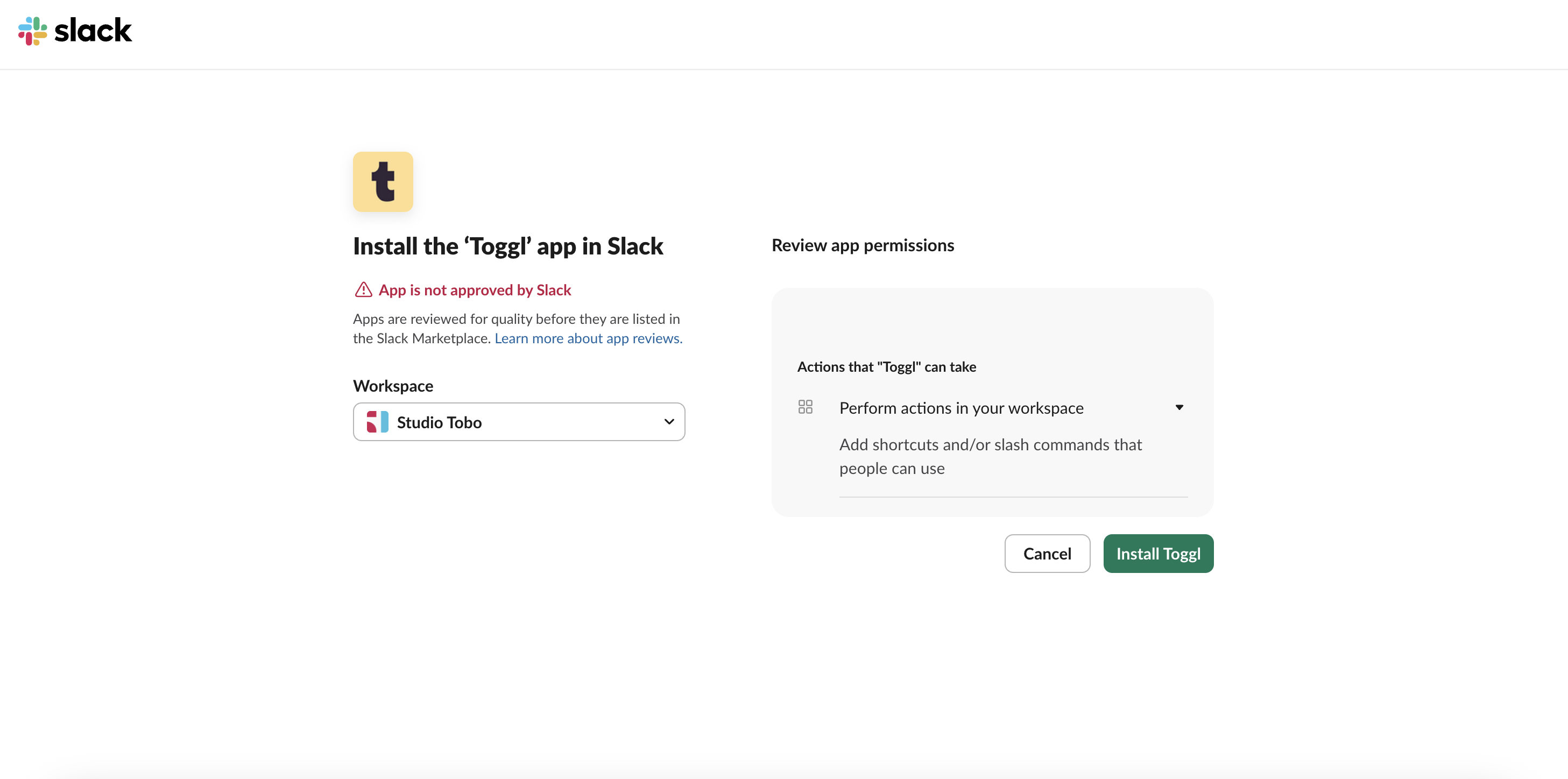
Toggl is in the process of having the app approved by Slack Marketplace, but until it is, you will see "App is not approved by Slack" message.
You’ll see a confirmation message once the connection is successful. You can now open Slack and try /toggl help to see the list of commands.
Connect your Toggl account to Slack
Once Toggl is installed in your Slack workspace, any team member can connect their Toggl account.
If a team member wants to use the Slack integration, they need to connect their own Toggl account.
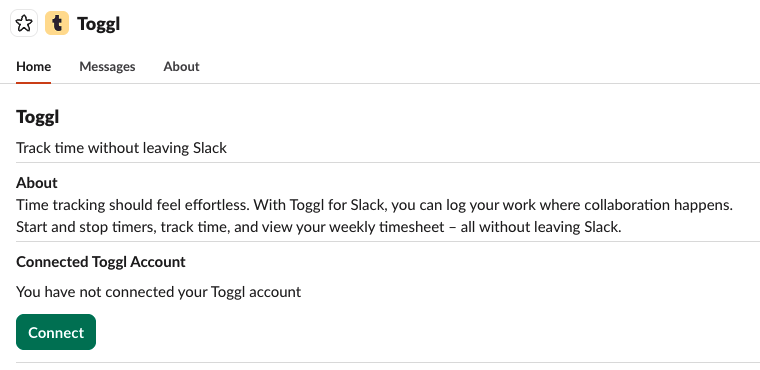
To connect your account, navigate to the Toggl app in your Slack workspace and click “Connect”.
Slash commands
You can use these slash commands in any channel in your workspace.
Command | Description |
| Start a timer. |
| Start a timer with the description “Website redesign”. |
| Stop your active timer. You can add a description, project, client, task and tags. |
| Track time for a specific date and time. You can also add a description, project, client, task and tags. |
| Track time with the description “Website redesign”. |
| Link a Slack channel to a Toggl project (and client). All time tracked from that channel will automatically be assigned to the project. |
| View your timesheets. |
| Get help with the Slack integration. |
| Share feedback about this integration or any Toggl product. |
Connect to a workspace
The first time you track time, you will be asked which workspace you want to use. Going forward time will be tracked to that workspace automatically. You can change this setting at any time from the app homepage. Note that this setting only impacts your user.
Link channels to projects
To save time, you can link Slack channels to Toggl projects:
- Navigate to the channel you want to connect
- Type
/toggl connect
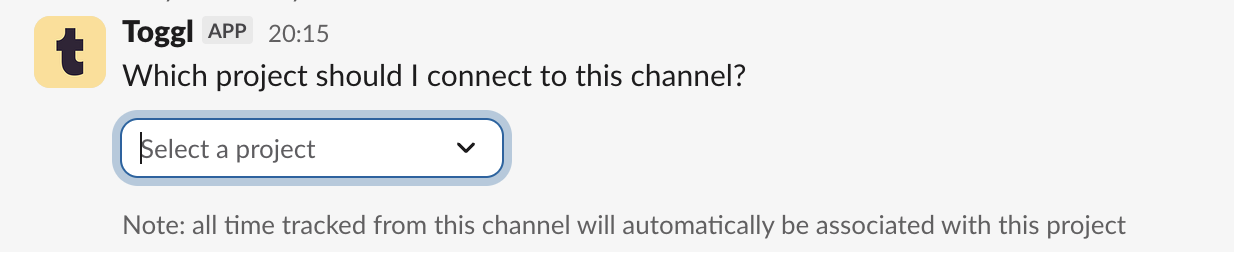
- Choose the project (and client) from the dropdown menu
- The channel will be connected to the project in Track
Now, any time a team member starts a timer in that channel, the time entry will automatically be assigned to that project.
AI bot
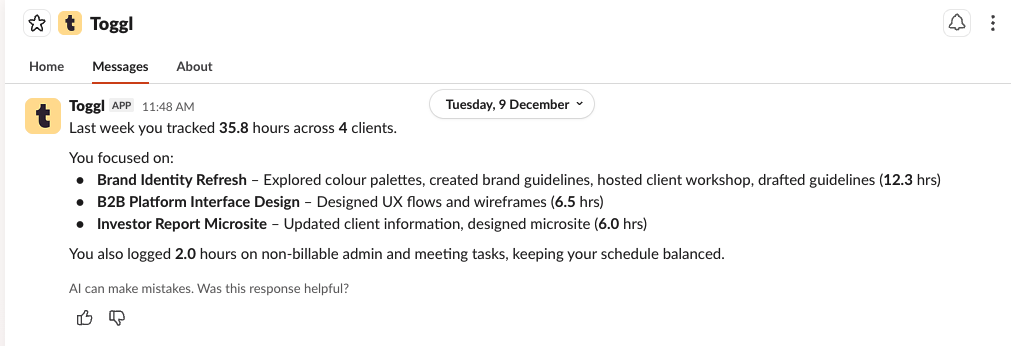
You can chat with the AI bot from the “Messages” tab in the app homepage. The bot can help you with:
- Starting/stopping a timer
- Summarising your work for yesterday or the past week
Set up timesheet reminders
You can set up reminders for team members to submit their timesheets, which they will receive as a direct message in Slack.

Set up time tracking reminders
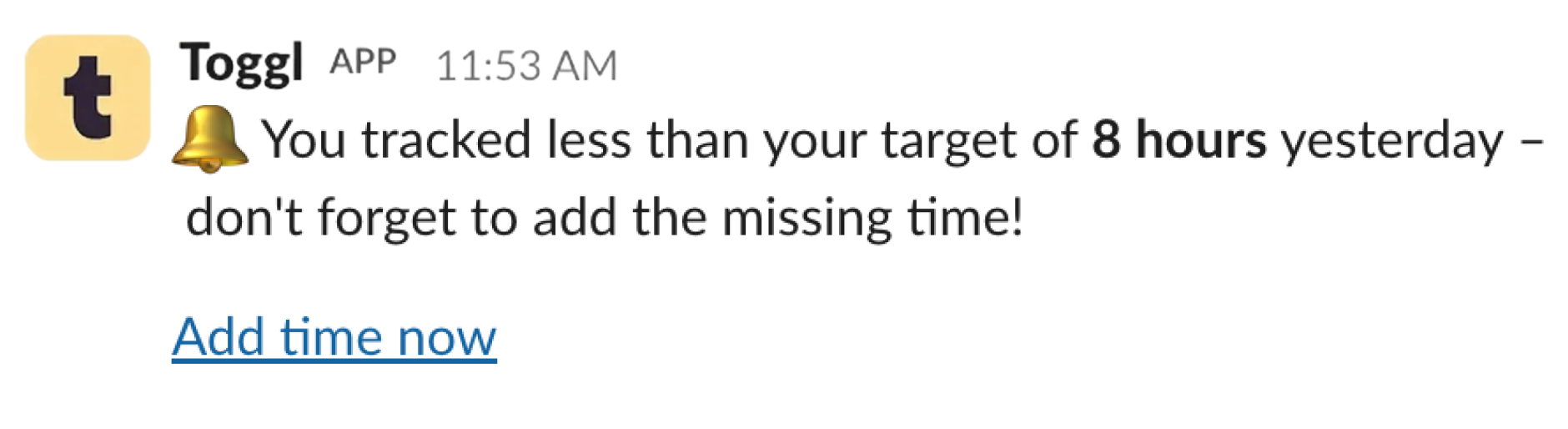
You can set up reminders for team members to track their time, which they will receive as a direct message in Slack.
Receive reminders
To receive reminders in Slack, you need to connect your Toggl user account to Slack (see above).
Have feedback?
We’d love your feedback on the Slack integration – it helps us make time tracking even easier! You can share your feedback here.
If you need help, please contact our support team.
Updated on: 06/16/2026
Thank you!