
Global Report Settings
You can control advance settings on your reports by clicking on the ⋯ menu at the top right of your reports
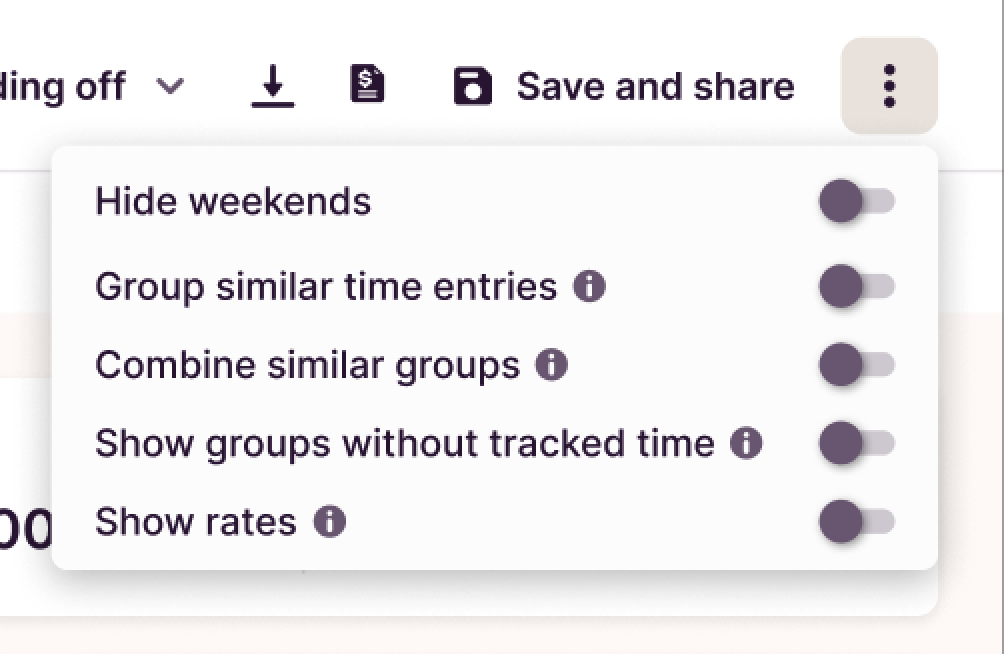
These settings are global - therefore they are applied to all your reports at once, where it makes sense
Hide Weekends
Visually removes weekends from your charts, but it doesn't affect the data. Therefore if you have time entries on a Saturday, they will still count towards your tracked time.
This setting only applies to charts that may display weekend groups:
- Bar chart in the summary report
- Workload pivot table
Group similar time entries
Combines into one the time entries that have the same in order to clean your detailed report
- Description
- Client
- Project
- Task
- Tag
- Billable
- Start date
This setting only applies to charts that time entries directly, so this setting will affect the Detailed Report

Combine similar groups
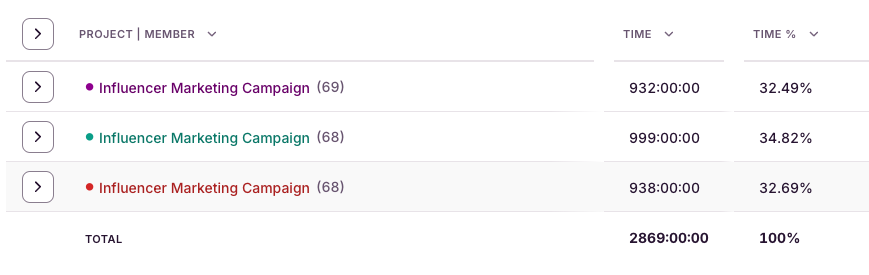
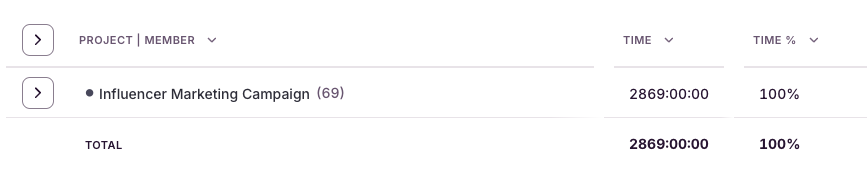
Combine groups with the same name into one, even if they belong to different clients. This way you can view all time tracked towards "Meetings" across all your clients.
Before
After
Show groups without tracked time
Previously part of the Summary Audit, this setting includes in your tables the groups (projects, users, tasks, clients...) that don't have time tracked.
This is useful to view what members have not been tracking time
Show rates
This settings breaks down your groups even further by distinguishing them by their separate billable rates.
This settings is useful when projects have different rates depending on the user or task
Updated on: 06/16/2026
Thank you!