
How to set up 2FA / Two Factor Authentication
Toggl allows you to enable 2FA with the app or device of your choice, on password-based accounts. Accounts where you login with Single Sign On (SSO), Google sign-on, Apple sign-on, or Passkeys, will not be prompted for 2FA.
Enabling 2FA
- Open the Profile page.
- Click on Account Settings
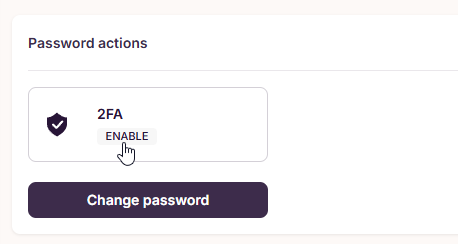
- Enable 2FA on the Toggl Account Settings screen, under the Password actions section
- Scan the QR code with an authenticator app, or set it up in your Password Manager by copying the key displayed into your password manager's 2FA section.
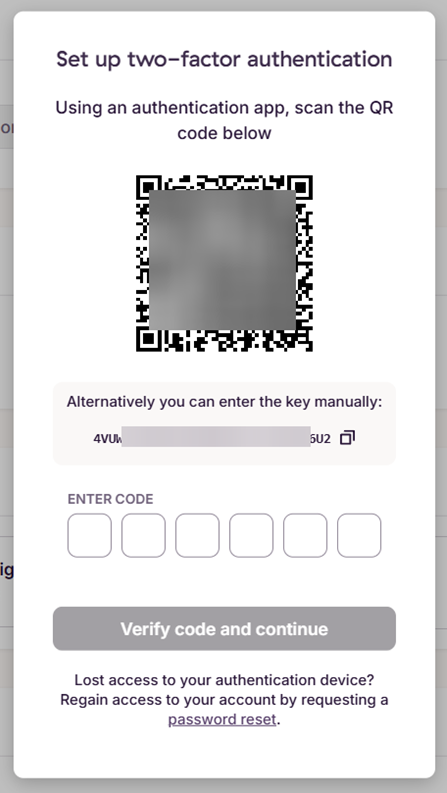
- Click "Verify code and continue"
- And you will see a success message
Popular authenticator apps & password managers
Below are some of the popular apps you could use as your authentication device or app, to scan the QR code above and setup your 2FA. Note: Some password managers refer to this form of 2FA as "TOTP (time-based one-time passcode)", which is the version we use.
Turning off 2FA
- Open the Profile page > Click on Account Settings
- Scroll to the 2FA section under "Password actions"
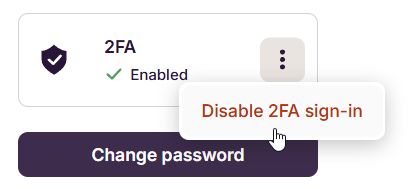
- Click the 3-dot menu
- Click "Disable 2FA sign-in"
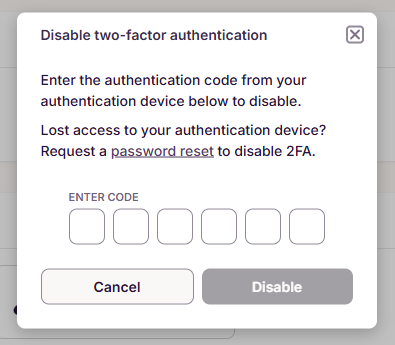
- You will be prompted for your 2FA code to disable two factor authentication
Frequently asked questions
Help I lost my 2FA device
You can disable 2FA in your account by resetting your password.
- Go to the password reset page and follow the flow. Open this article for detailed instructions.
- Once your password has been reset, 2FA will have been disabled.
- You can then re-enable it with your new 2FA authentication app or device
I am not being prompted for 2FA upon login
If your account utilises Single Sign On (SSO), Google sign-on, Apple sign-on, or Passkeys, you will not be prompted for 2FA when using those login methods -- even if it has been enabled. It only applies when you login with your password.
Can I enforce 2FA for all users in my workspace / organization?
Yes, just go to the admin console and enable the option "Enforce 2FA".
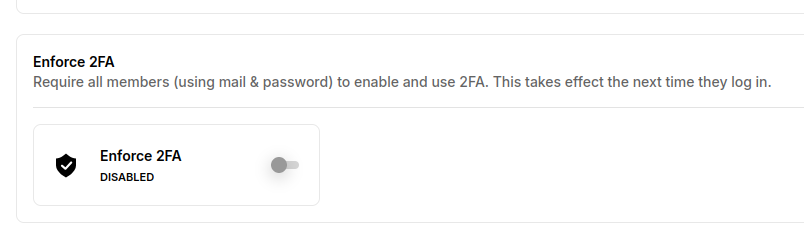
Note: This will only take effect for members using email and password as their login method and will be enforced the next time they log in.
Updated on: 06/16/2026
Thank you!