
Setting up SSO for Entra ID (formerly Azure AD)
If you are setting up SSO for Entra ID (formerly Azure AD) these instructions will be useful for you!
- Log in to Microsoft Entra ID (<https://entra.microsoft.com/>) using a Global Admin account.
- Create a new "Enterprise Application", name it "Toggl".
- On the "Overview" tab, select the option "2. Set up single sign on" and choose "SAML" on the next page.
- Use the information from Toggl (on the right) to fill in the information in the new Enterprise Application:
Note: if you need your users to begin the SSO flow from your side (also known as Identity Provider initiated login) instead of doing so at https://accounts.toggl.com/track/sso-login/ you should append ?toggl_product=track at the end of the "Reply URL" field.

- Change "(2) Attributes & Claims" and switch the "Unique User Identifier" to "user.mail" instead of "user.userprincipalname".
- Edit "(3) SAML Certificates" in the "Token signing certificate" section and set the "Signing Option" to one of the following options:
- "Sign SAML Response and Assertion"
- "Sign SAML Response"
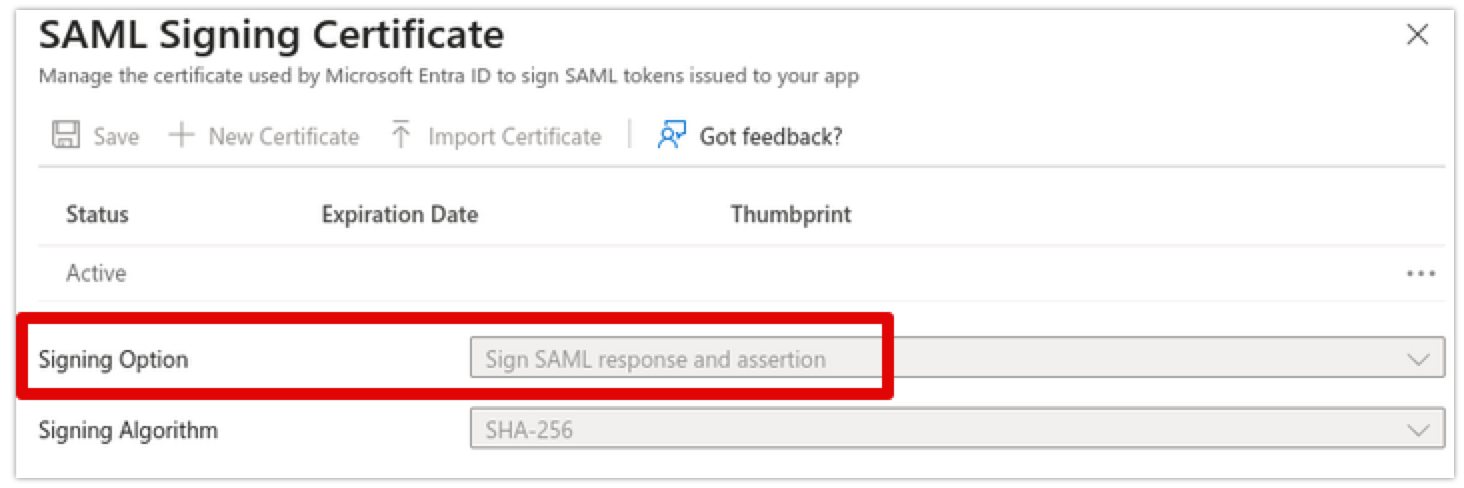 lease avoid selecting the “assertion-only” option to avoid issues.*
- Add individual user accounts or groups to the "Users and groups" to allow them to use the IdP:

Updated on: 06/16/2026
Thank you!